WordPress, plugins and themes update often. Most updates close security holes, and putting them off leaves your site open to attacks. But there is a familiar fear: after an update the site does not open, or shows a white "critical error" page.
Three rules for safe updates
- Back up first: files and database together; a file backup alone is not enough.
- Then check: after updating, make sure the site really opens and shows no error page.
- Roll back if needed: if there is a problem, go back to the backup right away.
How does Captanel do it?
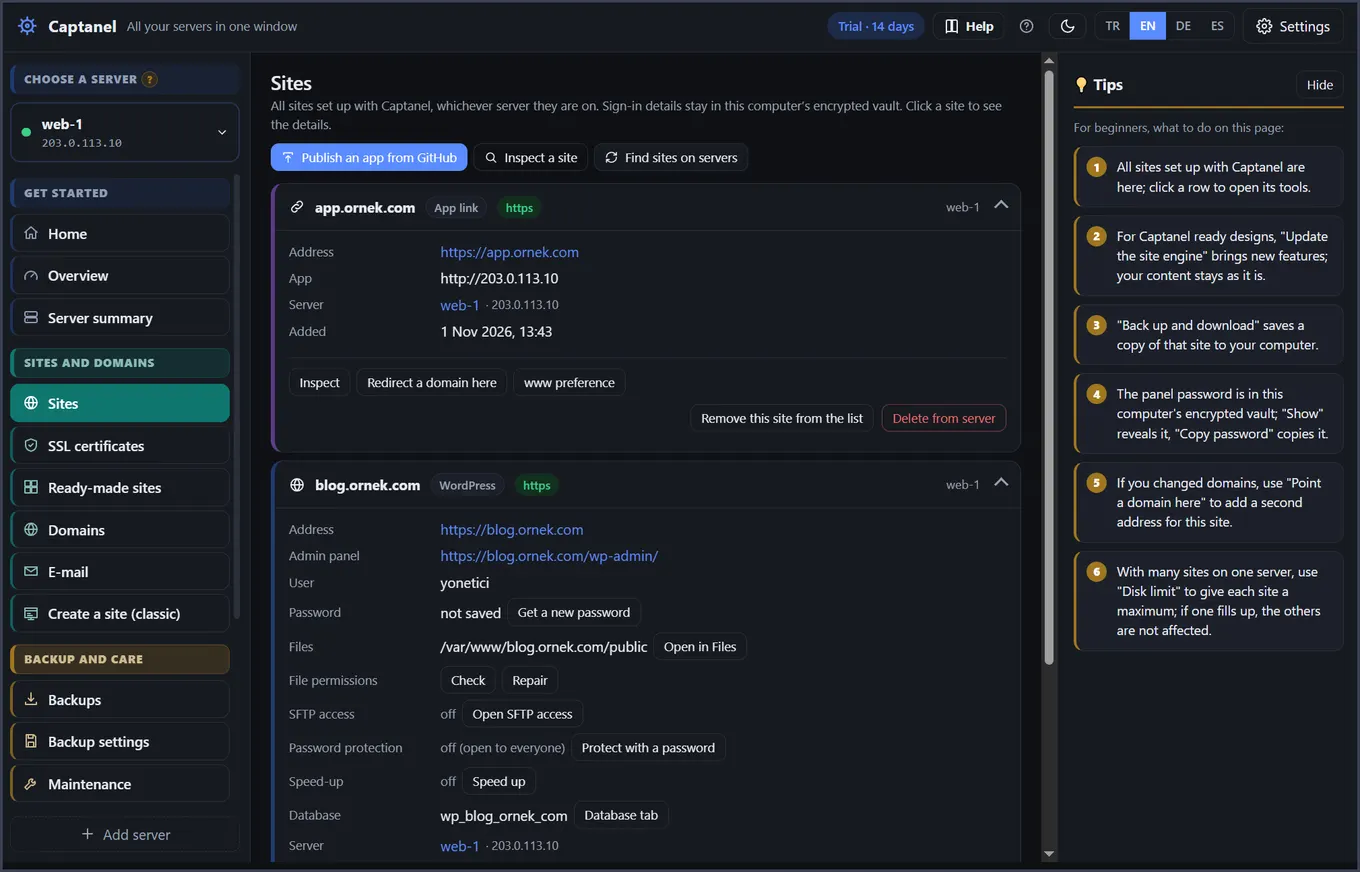
When you press "Update WordPress", each site's files and database are backed up first. Then core, plugins, themes and translations update, and the site is opened and checked. If it does not open or shows a critical error, it returns to the backup by itself. With several sites, one site's problem does not stop the others.
Even safer: staging
Before a big change, create a copy of the site (staging), try the update there and publish once everything looks right.
Tip: turn on automatic backups and keep a copy off the server, for example on your computer or in Google Drive.
Read more: Install WordPress on a VPS: one click, with SSL and backups · Try it free for 14 days